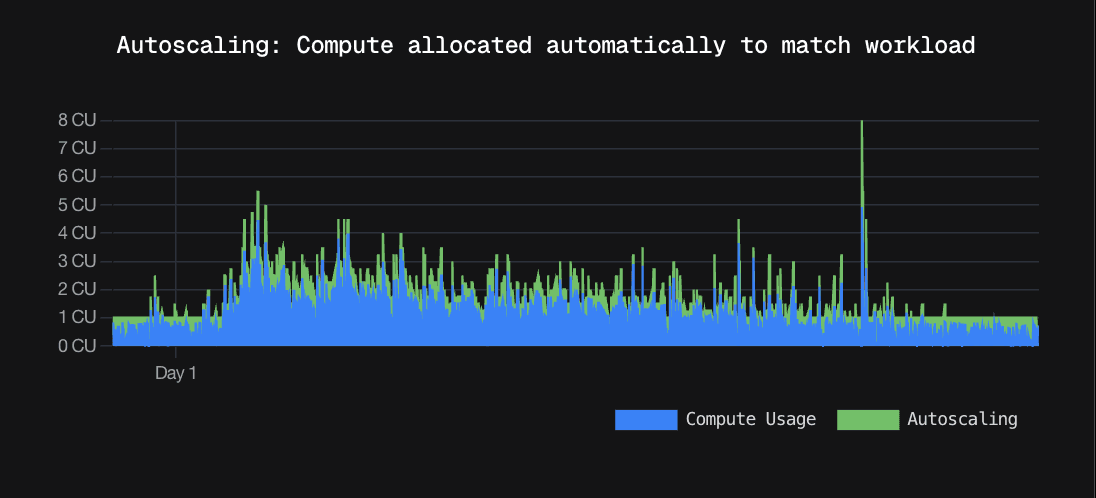



Production databases on Neon use 2.4x less compute and cost 50% less than if they were running on a provisioned platform.
/Changelog

Changelog

The latest product updates from Neon

RSS feed

Connect modal defaults to Connection string

Developers told us they want to quickly copy the database connection string to drop into their application. Based on that feedback, the Connect modal on the project dashboard now defaults to Connection string in the snippet dropdown instead of the psql command. You can still choose any snippet from the dropdown (e.g., psql), and your preferred option is saved for the next time you open the Connect modal.
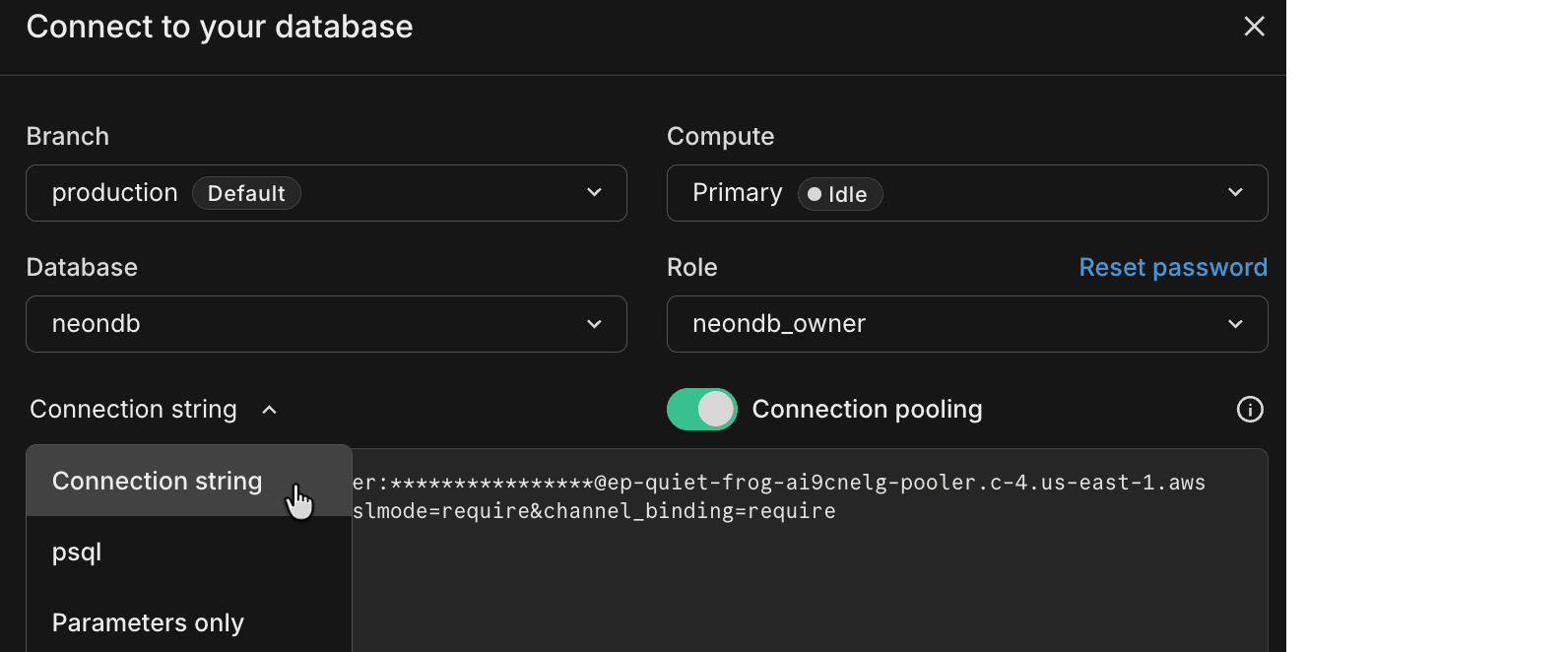
Connection string option in Connect modal

Cursor plugin for Neon

The Neon Cursor plugin is now available. It adds Neon Skills and MCP integration to Cursor so your assistant can use workflow guidance (connection methods, ORMs, branching) and run database operations from natural language, including listing projects, creating branches, running SQL, and more. In Cursor chat, run /add-plugin neon-postgres, or run /add-plugin and search for neon. The plugin appears as Neon Postgres in the Add Plugin menu:
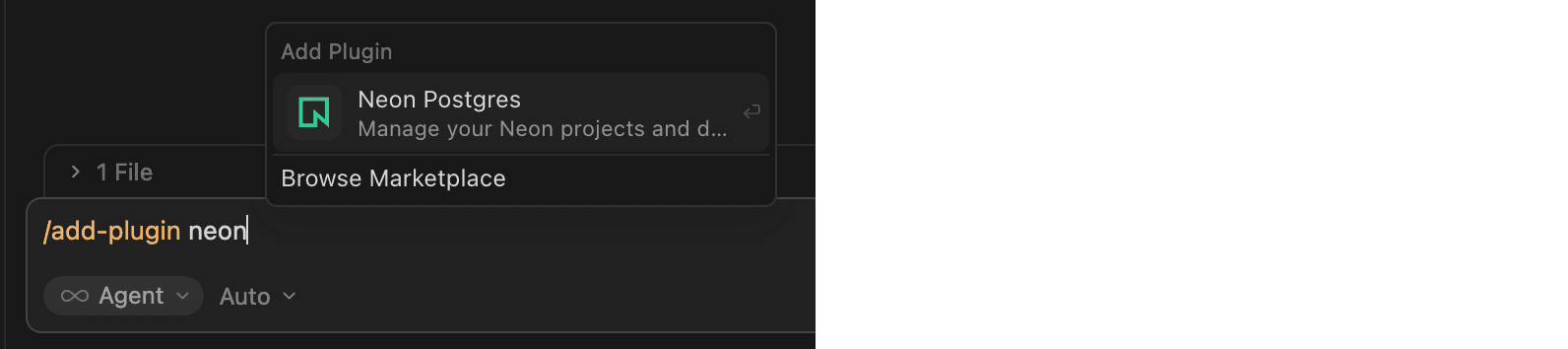
Neon Postgres in the Add Plugin menu

After installation, prompt with "Get started with Neon" to complete authentication. For setup and usage, see Cursor plugin for Neon.

Expanded infrastructure capacity in AWS Europe (Frankfurt)

We've expanded infrastructure capacity in the AWS Europe (Frankfurt) region (aws-eu-central-1). If you have IP allowlists on external systems that Neon connects to, or if you use Private Networking in this region, update your allowlists or VPC endpoint configuration to include any new addresses. See our Regions documentation for the complete list of NAT gateway IPs and the Private Networking guide for VPC endpoint service addresses by region.

Neon CircleCI Orb: a Postgres branch for every pipeline run

A new community-contributed Neon CircleCI Orb provisions a Neon database branch per job, so your CI database is production-like in behavior with fewer "works in CI, breaks in prod" surprises. Each run gets an isolated, ephemeral branch. You can branch from a pre-migrated base to skip running migrations from scratch. The orb handles cleanup and TTL when the job ends. Because each run has its own branch, tests stay deterministic and parallel runs don't share state. Example:

version: 2.1

orbs:
  neon: dhanushreddy291/neon@1.0

workflows:
  test_workflow:
    jobs:
      - neon/run_tests:
          migrate_command: npm run db:migrate
          test_command: npm test

See the Automate branching with CircleCI guide to get started. The guide covers the neon/run_tests job and the neon/create_branch, neon/delete_branch, and neon/reset_branch commands.

Add organization members by domain

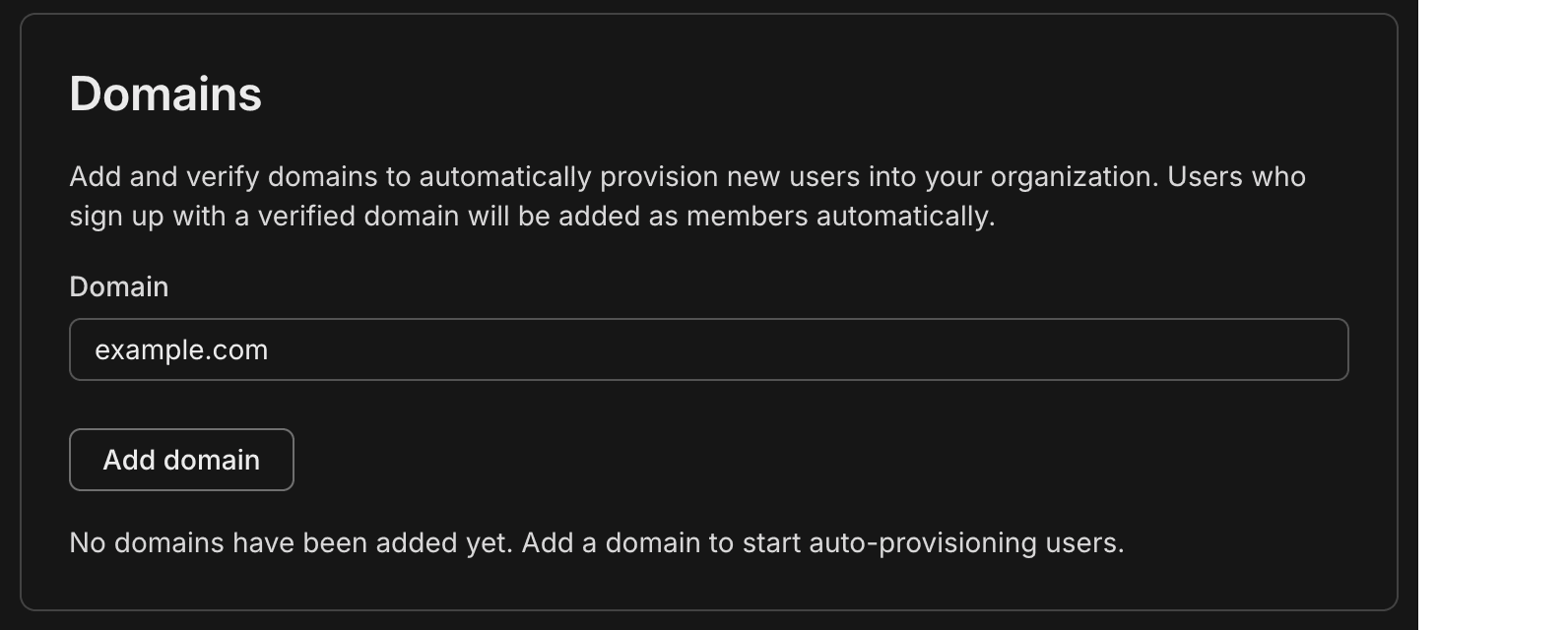
You can now add members to your organization by email domain. Organization admins can add and verify one or more domains (for example, yourcompany.com) in your Neon organization Settings, under Domains.

When a user signs up or logs in to Neon with an email that matches a verified domain, they’re automatically added to your Neon organization as a Member, no invite email required. They see your organization in the org switcher in the Neon Console.

This is useful for teams that want everyone within the company email domain to have access without needing to send individual invites. You simply add your domain in the Neon Console, add a TXT record at your DNS provider to verify ownership, then click Verify in the Neon Console.

Domain section on the Organization Settings page

Colleagues who already have Neon accounts are added to the organization the next time they log in. For the full flow and behavior (roles, multiple domains), see Add members by domain.

Neon MCP Server updates

This week’s Neon MCP Server release brings new tools for pulling Neon documentation and setup guidance into your development environment, plus a new guide for connecting Google Jules to the Neon MCP Server.

New documentation retrieval tools

The MCP Server now includes two tools so your AI agent or MCP client can fetch Neon docs on demand:

  • list_docs_resources – Lists all available Neon documentation pages from the docs index. Returns page URLs and titles so you can choose which page to load.
  • get_doc_resource – Fetches a specific Neon documentation page as markdown. Use list_docs_resources first to discover page slugs, then pass the slug to this tool to load the content.

Together, these tools let your agent or assistant look up setup, configuration, and how-to content from the Neon docs without leaving the chat.

Neon MCP Server on Google Jules

The Neon MCP Server is now available in Google Jules, Google's AI-powered coding assistant. Create a Neon API key, add the server in Jules settings, and you're set. Full setup steps are in Connect MCP clients to Neon.

Neon MCP Server in Google Jules

Compute Autoscaling Report

We've published a Compute Autoscaling Report that breaks down how Neon's autoscaling compute compares to provisioned, fixed compute sizes, based on real production workloads that run on Neon.

Key Findings

  • Production databases on Neon use 2.4x less compute and 50% less cost than if they were running on provisioned, fixed compute sizes.
  • Putting the same production workloads on provisioned, fixed compute sizes would result in 55 performance degradations per database per month.
  • Read replicas on Neon use 4x less compute than if they were running on provisioned, fixed compute sizes.
  • Running the same small scale-to-zero workloads on provisioned, fixed compute sizes would cost 7.5x more.

The report walks through what happens when you use provisioned, fixed compute sizes vs. autoscaling compute, and how that impacts cost and performance. If you've ever wondered how much autoscaling actually saves you (or how it behaves under real traffic), the report lays it out with real data and the full methodology.

Autoscaling report graph

To learn more about Neon's autoscaling feature and how to enable it for your projects, see Autoscaling.

Custom API key header for OpenTelemetry

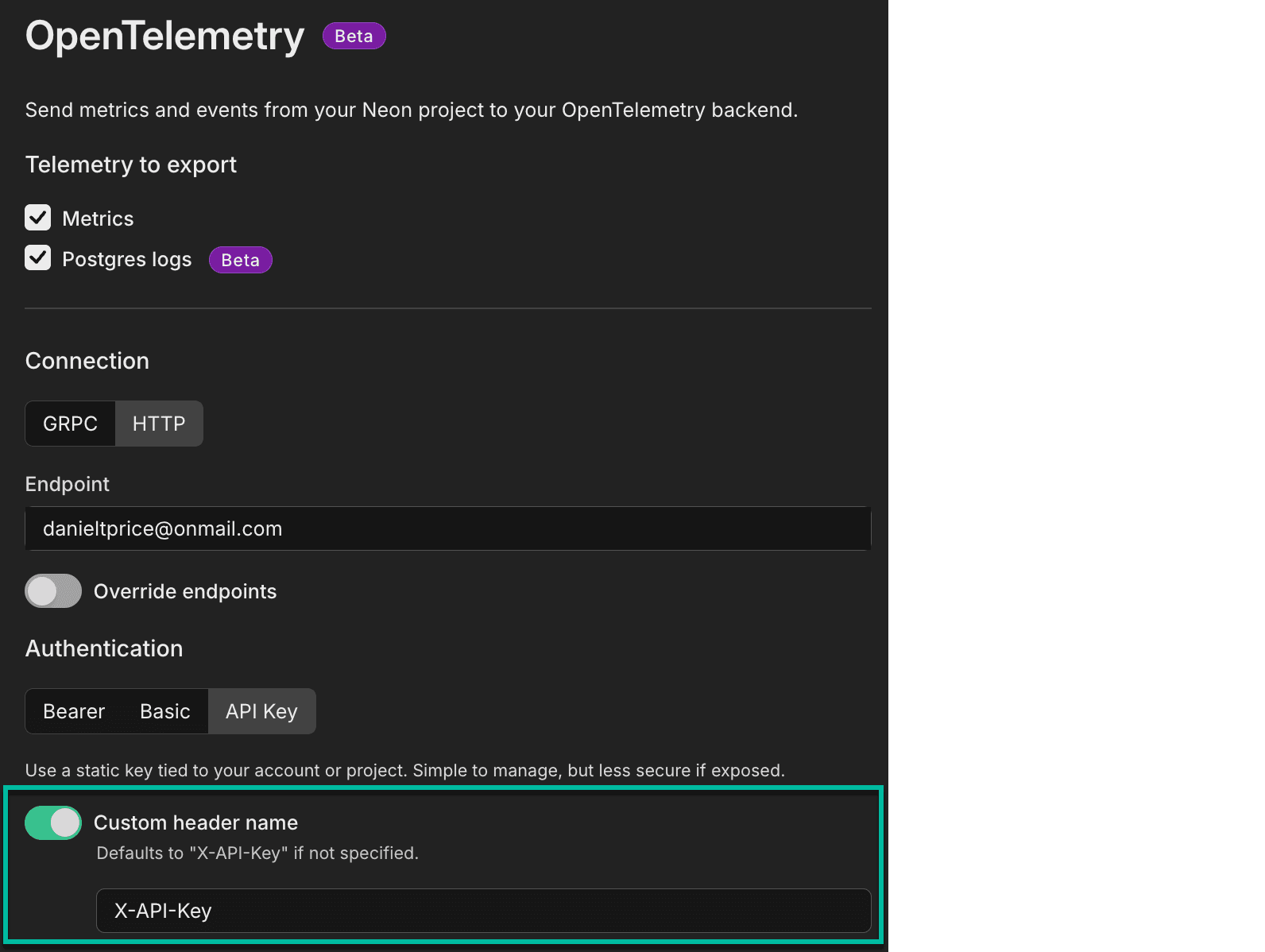
You can now specify a custom header name for API key authentication when configuring OpenTelemetry integrations. The header defaults to X-API-Key if not specified. This makes it easier to integrate with services like Honeycomb that expect a different header name for API keys.

OpenTelemetry custom header name configuration

Track your usage programmatically on paid plans

A new consumption history API for current usage-based plans is now available on all paid plans, including Launch. The metrics returned align directly with usage-based billing, so what you query matches what you see on your invoice.

Use this API to build custom dashboards, integrate with your reporting tools, or set up usage alerts. Query at hourly, daily, or monthly granularity for metrics like compute usage, storage (root and child branches), instant restore, data transfer, and extra branches.

This example retrieves month-to-date usage for all metrics:

curl --request GET \
     --url 'https://console.neon.tech/api/v2/consumption_history/v2/projects?from=2026-02-01T00:00:00Z&to=2026-02-06T00:00:00Z&granularity=daily&org_id=$ORG_ID&metrics=compute_unit_seconds,root_branch_bytes_month,child_branch_bytes_month,instant_restore_bytes_month,public_network_transfer_bytes,private_network_transfer_bytes,extra_branches_month' \
     --header 'Accept: application/json' \
     --header 'Authorization: Bearer $NEON_API_KEY' | jq

For API details, see Retrieve project consumption metrics. For more information, see Querying consumption metrics.

Try it with your AI agent:

Copy this prompt to have an AI assistant help you build the curl command for your desired time period.

Simpler MCP Server setup

You can now configure the Neon MCP Server for all detected AI agents and editors in your workspace with a single command:

npx add-mcp https://mcp.neon.tech/mcp

This adds the MCP config to your editor; restart your editor (or enable the MCP server in settings). When you use the connection, an OAuth window will open in your browser to authorize access. For the full setup (MCP server plus agent skills and VS Code extension), use npx neonctl@latest init instead. It configures the MCP server for Cursor, VS Code, Claude Code, and others using API key authentication.

With OAuth, the MCP server uses your personal Neon account by default. To use organization projects, provide org_id or project_id in your prompt. For API key-based authentication (e.g., remote agents), use:

npx add-mcp https://mcp.neon.tech/mcp --header "Authorization: Bearer $NEON_API_KEY"

For more setup options (including global vs project-level), see Connect MCP clients to Neon and the add-mcp repository.

Postgres extension updates

We've expanded extension support for Postgres 18:

ExtensionVersionDescription
pg_graphql1.5.12Adds a GraphQL API layer directly to your Postgres database
pgx_ulid0.2.2Generates universally unique lexicographically sortable identifiers (ULIDs)

To install these extensions, run:

CREATE EXTENSION pg_graphql;
CREATE EXTENSION pgx_ulid;

For a complete list of Postgres extensions supported by Neon, see Postgres extensions.

Neon API
  • You can now set your project's default branch using the Update Project API by passing the default_branch_id parameter. This makes it easier to automate branch management in CI/CD pipelines and scripts, for example, after a recovery operation or when promoting a development branch to production. The previous default branch is automatically unset.

    curl --request PATCH \
         --url 'https://console.neon.tech/api/v2/projects/{project_id}' \
         --header 'Authorization: Bearer $NEON_API_KEY' \
         --header 'Content-Type: application/json' \
         --data '{"project": {"default_branch_id": "br-example-123456"}}'
Tables page
  • The Drizzle Studio integration that powers the Tables page in the Neon Console has been updated to version 1.3.0. This release fixes issues with uppercase letters in enum column types and adding foreign keys. For the full list of improvements, see the Neon Drizzle Studio Integration Changelog.

    The Tables page lets you view, edit, and manage your database tables and data directly from the console. For more, see Tables page.

Was this page helpful?

Subscribe to our changelog.
No spam, guaranteed.